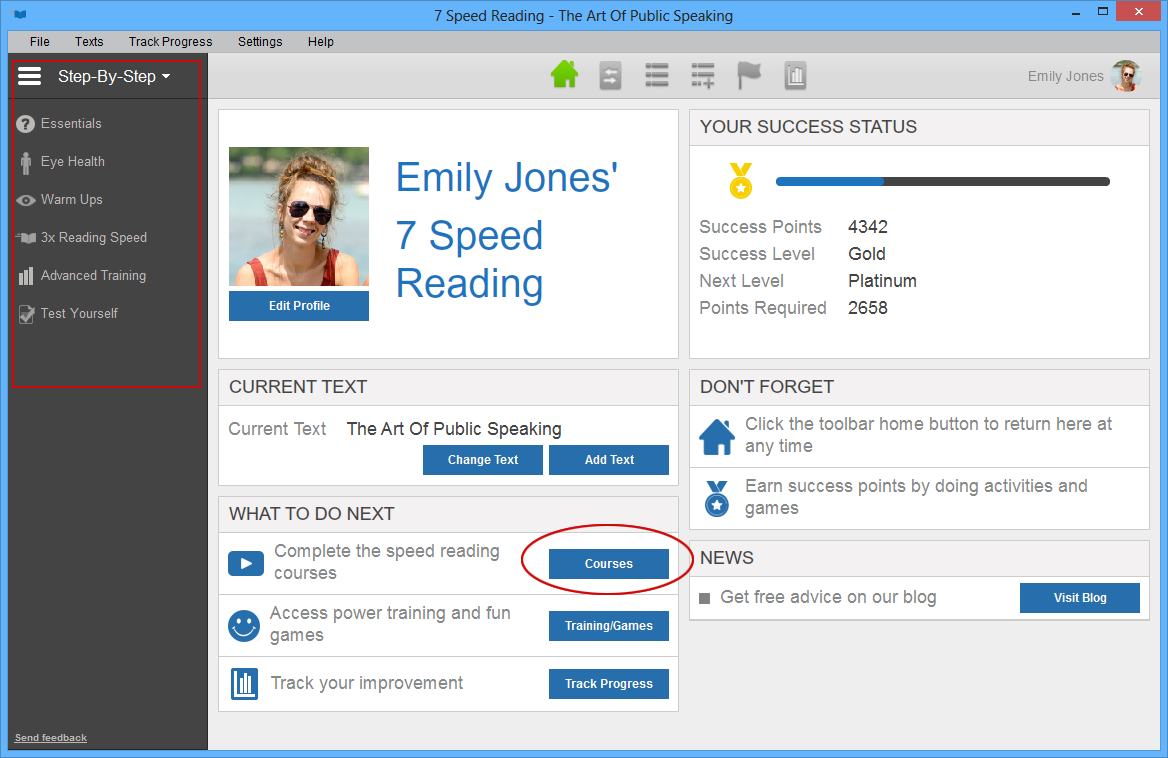
Everything you need to know about speed reading is found in the instructional videos in the Step-By-Step course series. To watch these videos and complete the reading and comprehension training, click on the side menu on the left side of the screen, or click the [Video Course] button on the home page. If you cannot see the Step-By-Step menu, click the menu display icon at the upper left corner of the display. Click this icon any time you want to toggle between the side menu display and the full screen display. For example, there may be times when you want the full screen width while you are watching a video.
Starting a Video Course
Choose the video you want to watch from the Step-By-Step menu by clicking on one of the main video categories and selecting a lesson from the sub-menu of videos for each course. Click on the video to load it, and then click "Watch Video" to begin the lessons. Each course contains lessons that explain important aspects of speed reading, exercises and activities to improve your reading and comprehension rates, or both. Each course has been designed to build on the lessons you learned in the previous exercises, so we recommend that you go through the video courses in order.
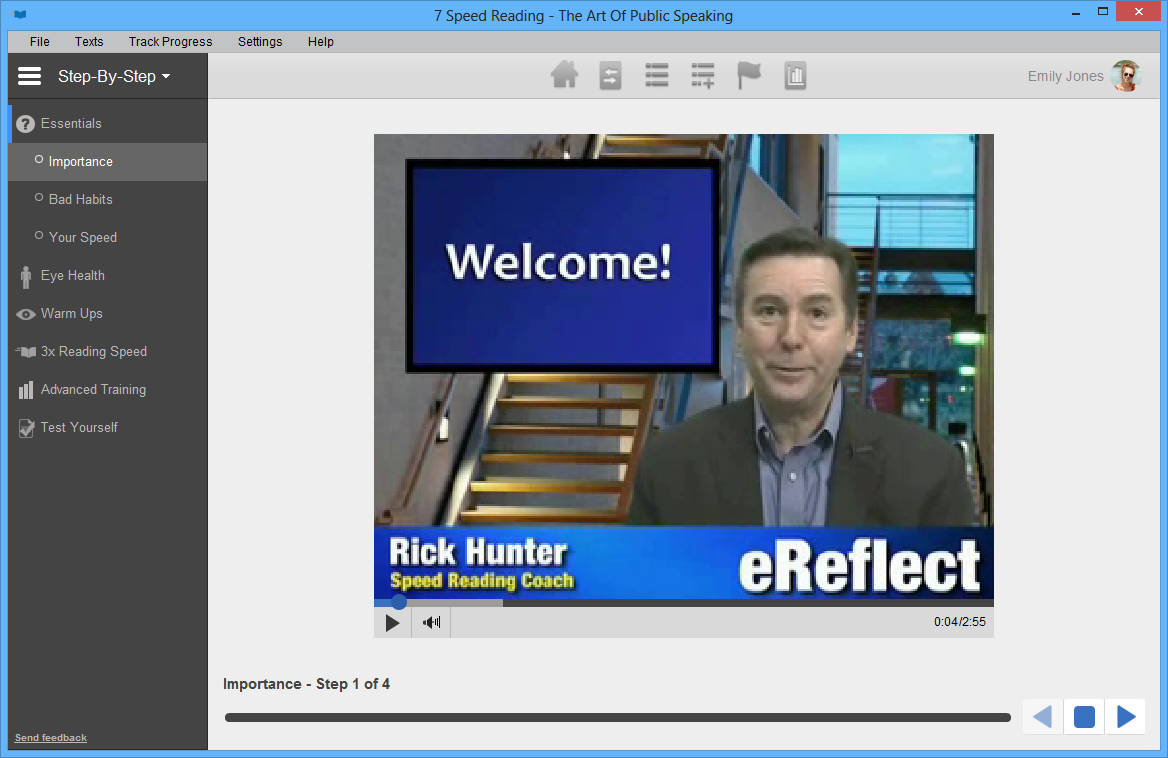
The instructional video viewing area uses a common-sense interface for controlling the video including a play/pause button, volume control, and progress bar. Be sure your speakers are turned on and the volume is up.
To pause a video, click the 'pause' button located at the bottom left side of the viewing area. To resume the video, click the 'play' button.
To fast forward or reverse a video, drag and drop the control button on the horizontal slide bar located beneath the viewing area.
Completing the Exercises
After the instructional video at the beginning of a course, you will have a series of exercises to complete. Each exercise is a separate step. The exercises and instructions in each course are designed to teach you essential speed reading skills in the most efficient and effective way possible. For this reason, you will have to complete each exercise before moving on to the next one. This means that while you can go backwards in the exercise series to review a previous lesson at any time, you will be able to use the right arrow key to advance through the course only as far as the last step that you completed. You can go backwards in the exercise series to review a previous lesson at any time. Move through the steps in a course by using the blue keys at the bottom right hand corner of the display to advance to the next step, stop and restart a step, or go back to repeat a step.
The exercises and instructions in each course are designed to teach you essential speed reading skills in the most efficient and effective way possible. For this reason, we recommend that you complete each exercise before moving on to the next one. You can go backwards in the exercise series to review a previous lesson at any time.
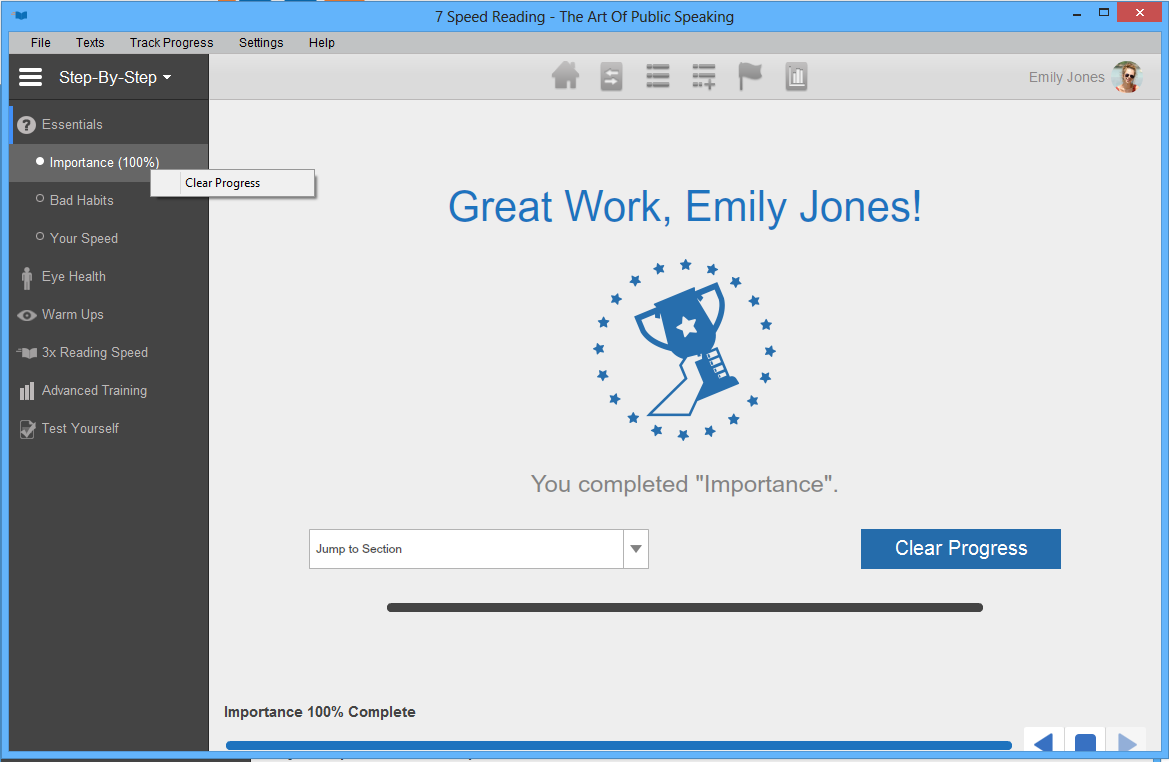
Clearing Progress HistoryAs you complete each step in a course, your progress through the course is tracked and displayed by a percentage shown next to the course name on the side menu bar. Once you have completed a course the display will show 100%. If you want to clear your progress and go through the entire series of steps in that course again in order, click the [Clear Progress] button on the final screen of that course, or right-click the name of the course on the menu and click "Clear Progress."