The activities and exercises use the page of text at your current location. This means that when you first select your current text, the system starts at the beginning of the text and continues going through the text with each new exercise, just as if you were reading the book from start to finish. You can modify where you are in the text by checking and changing your current location.
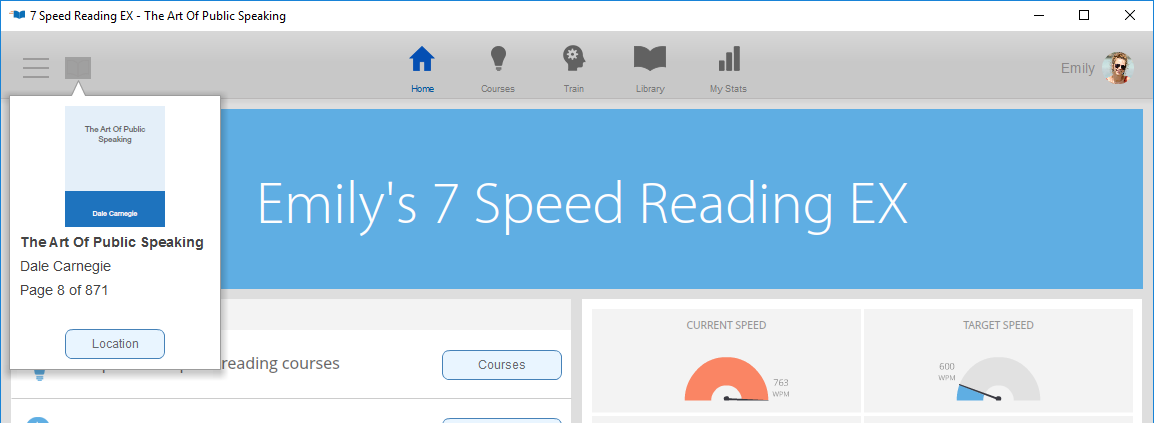
To see where you are in the text, click the book icon at the top of the screen. The system shows you the name of your current text, the total number of pages, and what page you're on right now. To go to that page, click the "Location" button.

Using the Location pop-up window, you can view the page you are currently on, using the scroll bar to the right to see all of the text on that page. The amount of text on one page will depend on the page display size you have chosen. See "Adjusting Display Settings" for more information.
Use the slide bar and the arrow buttons at the bottom of the pop-up window to select the page in the text that you want to use as your current text selection. Click on the X at the top right corner of the Location window to save this setting.
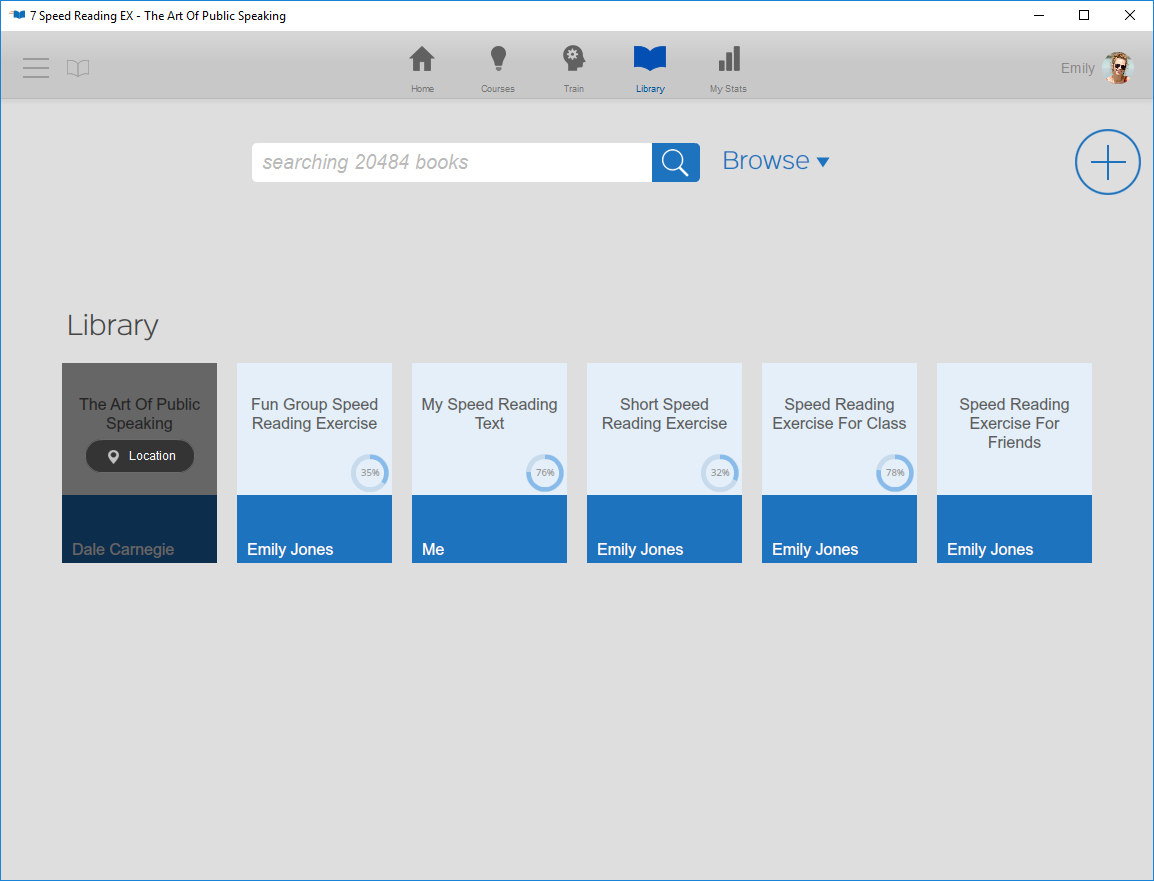
You can check your location directly from the library display by clicking the "Location" button on your current text.
See also: